Conducting an Interview - Interviewer
HireNow Portal > Interviews
Description
As a interviewer of HireNow, I am able to join and conduct interviews with applicants.
Applicable User Roles
List of roles that have access or can use this feature.
Interviewer
How To
Joining an Interview
To see a list of scheduled interviews assigned to you as an interviewer, navigate to the Interviews page. You will land on the Upcoming page, which shows all scheduled interviews which have not started yet.
Ten minutes before the scheduled interview start time, a Join Interview button will be available on the application page. As an interviewer, you will be able to see the application steps that have been completed up to this point including file uploads and assessment scored. To view these, click the arrow on the respective section to expand it.
📝 Note Interviews are marked as upcoming until the interview is marked as complete, which is achieved by progressing the application or clicking the ‘Complete’ button when leaving feedback. However, if the interview has been marked as scheduled externally, it will automatically be on the completed page.
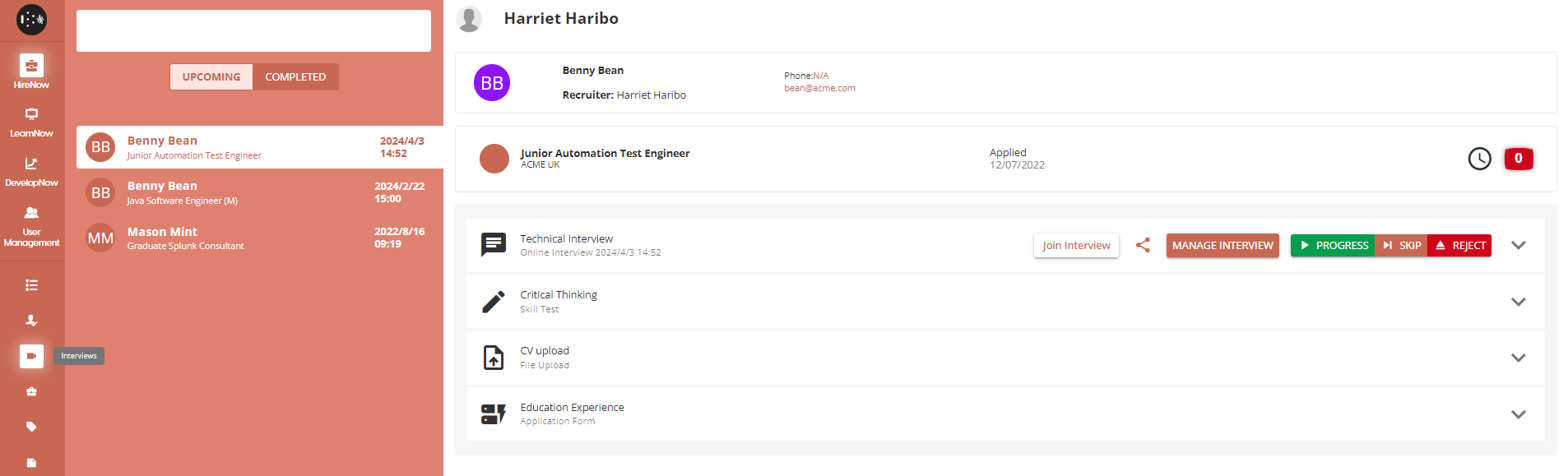
If you also have the recruiter role, then you can also join the interview via the application steps window. Just like in the interviews page, if you are the assigned interviewer for an interview session the Join Interview button will become visible 10 minutes before the scheduled start time on the Interview step.
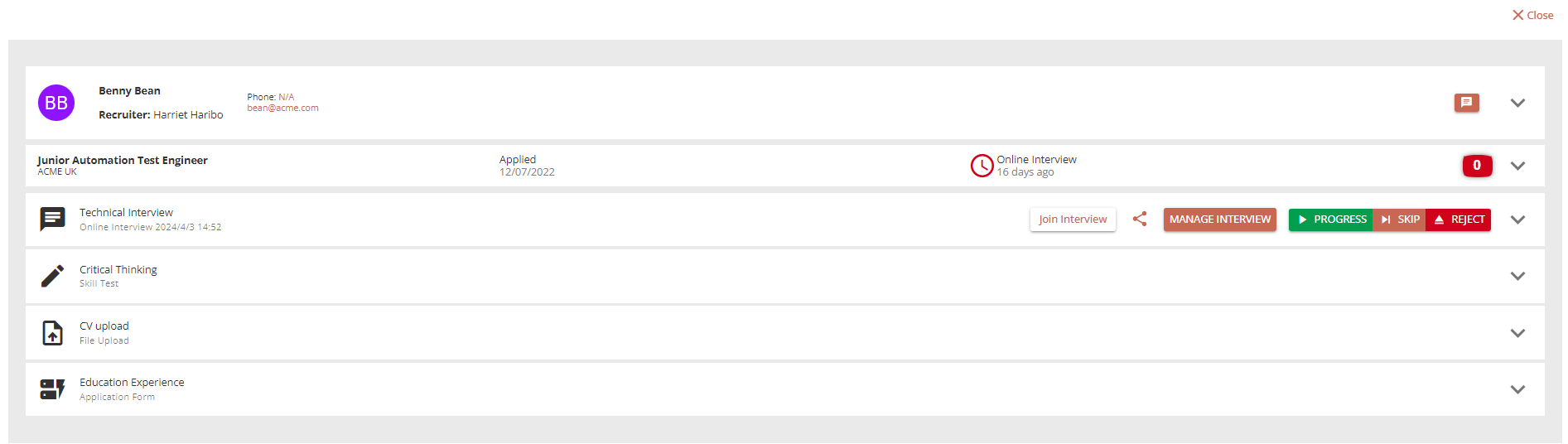
Interview Lobby
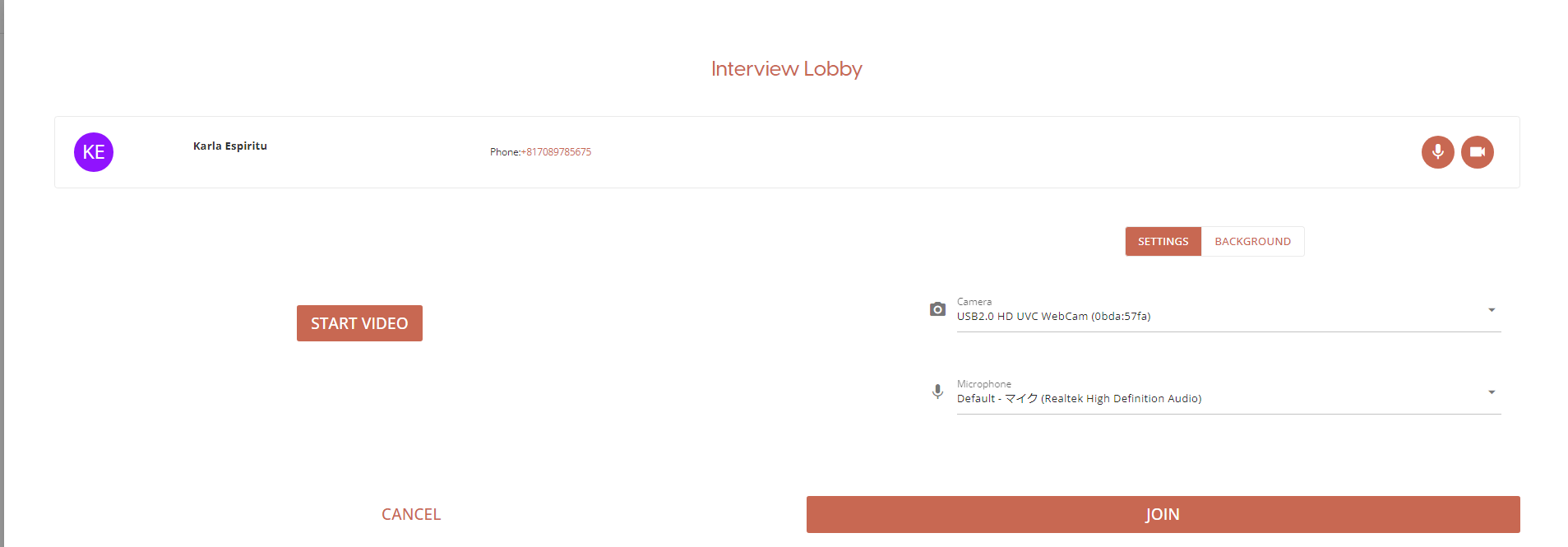
The interview lobby provides options to the participant before joining the meeting.
The participant can change the source of their video and microphone, as well as edit their video camera background by uploading their own background image or blur their background.
All options available in the lobby can also be configured during the interview.
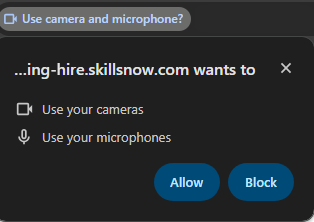
⚠️ You may need to give your browser permission to use microphone and camera: If it is your first time joining a SkillsNow video meeting, you will have to give permission for your browser to use your microphone and video devices. You may need to refresh the page to see any changes.
In order to start your camera, you need to click on the Start Video button. This will start your video device so you can see a preview of your camera before joining the meeting.
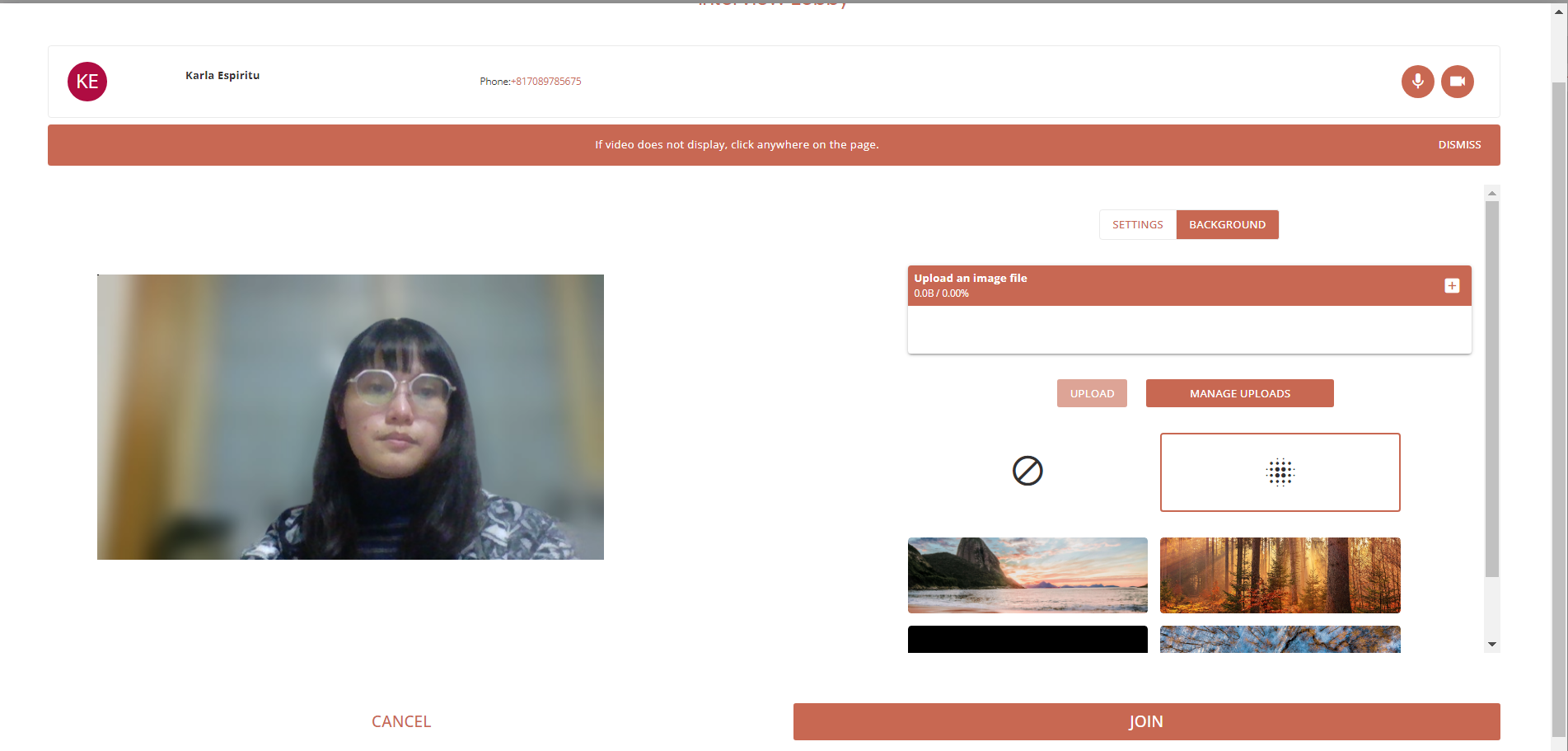
Participants may have to allow access from their browser to their video/microphone devices.
On the background tab, users can select which background option they would like to apply for their video. They can select an image from the image gallery, or they can upload their own image by selecting the ‘+' button, then clicking 'UPLOAD’.
They also have the option to change their background, video and microphone settings during the interview.
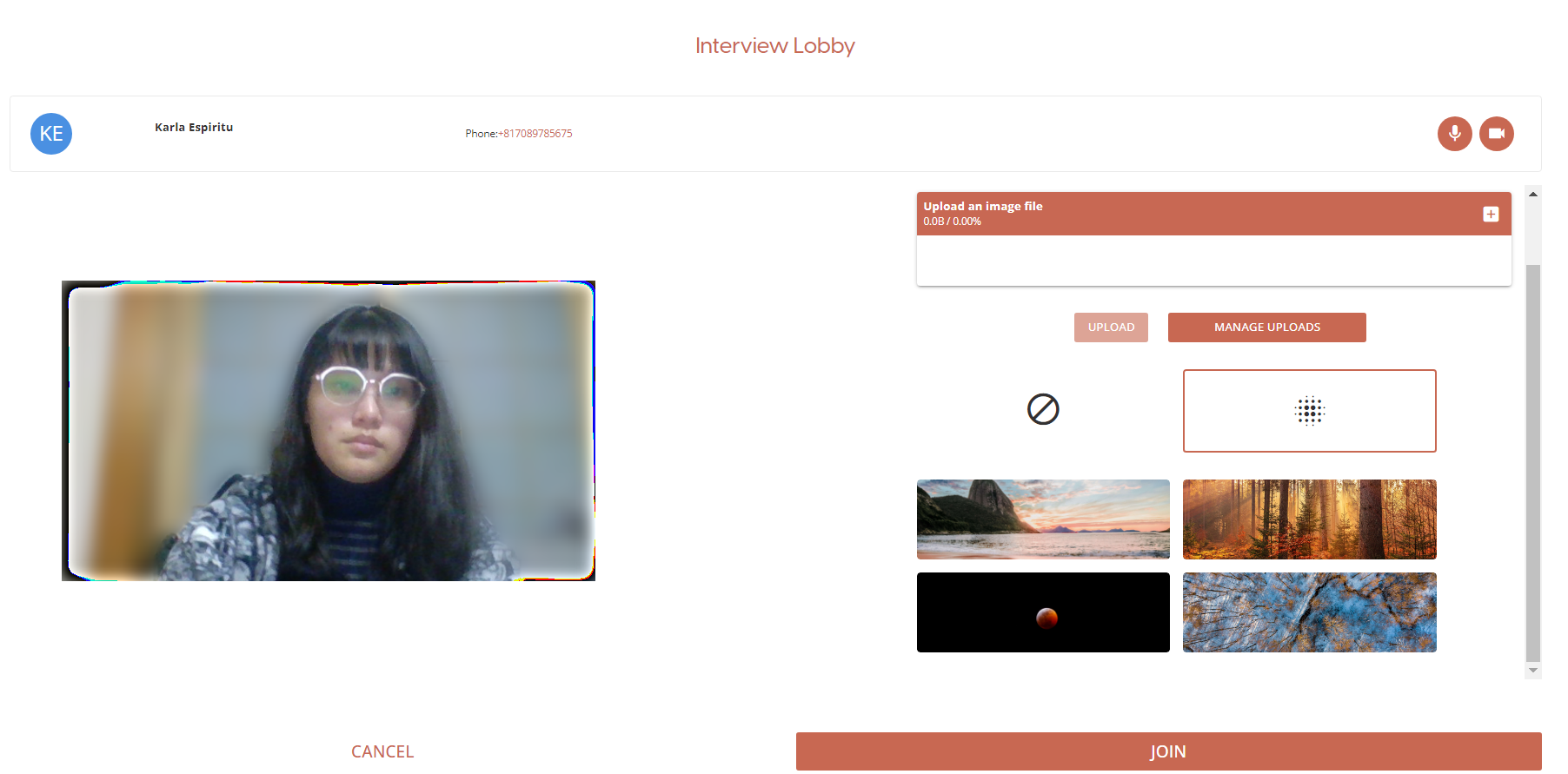
Once you are happy with all your settings, click on Join Interview to start the interview session.
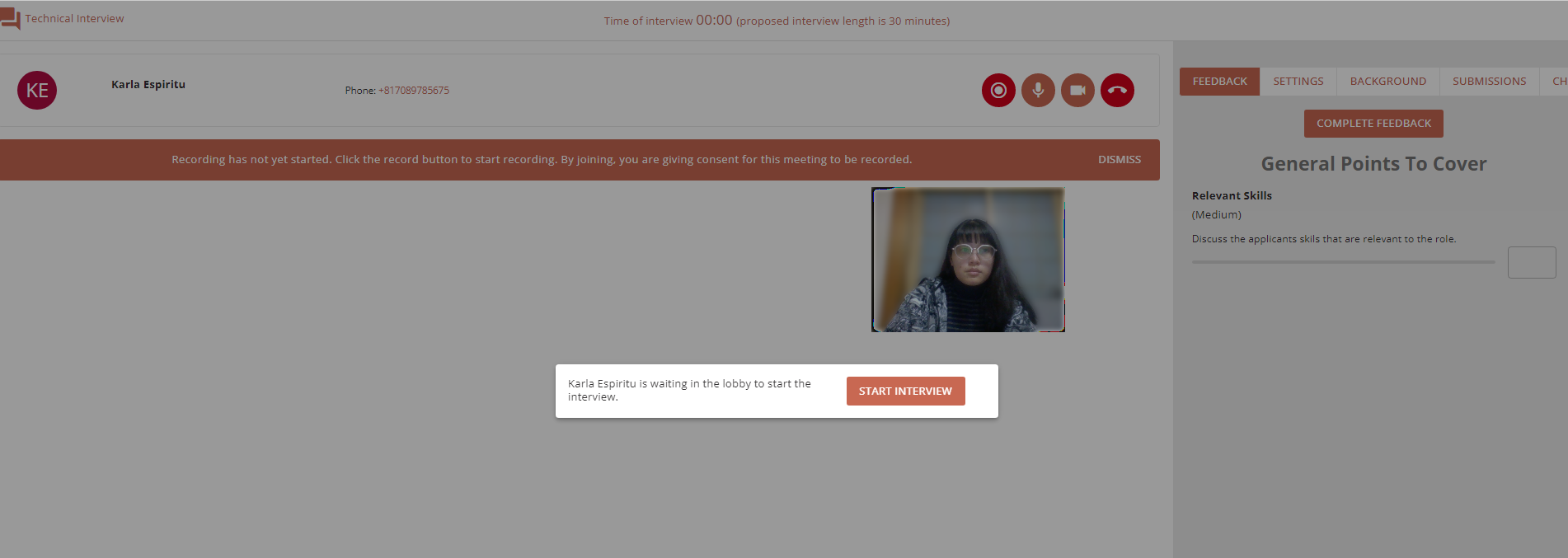
When the applicant joins the interview session, you will see a pop-up displayed prompting you to allow the applicant into the meeting. Click Start Interview to allow the applicant to join and start the interview. This will also start the interview timer.
Recording an Interview
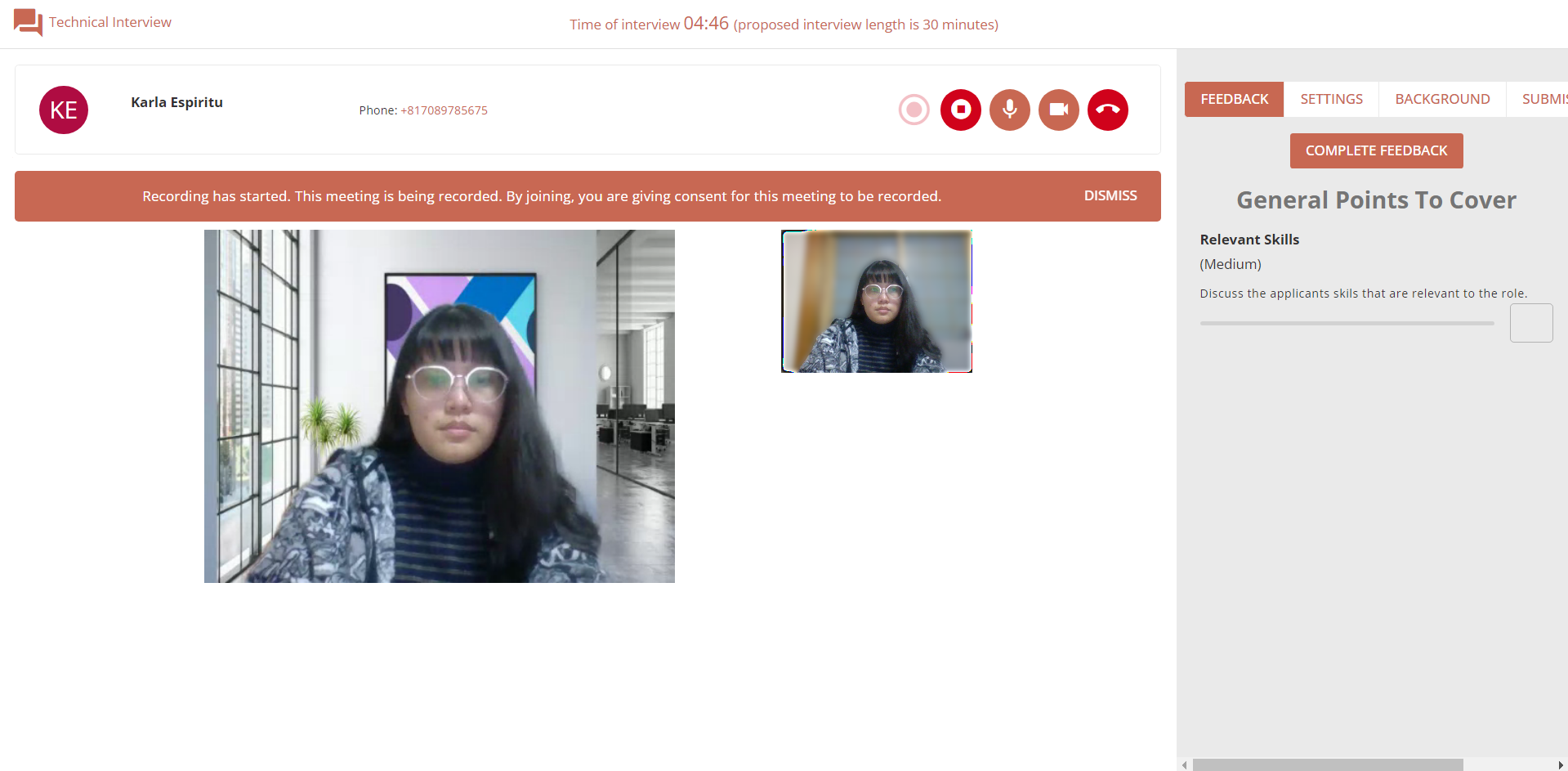
You can record interviews so that they can be viewed by a reviewer or recruiter later. To record an interview click the record button to the left of the mute microphone button.

Once recording has started, the applicant and interviewer(s) will be notified with a message and a pulsing red circle to the left of the record button.
Recording can be stopped by selecting the record button a second time, and this will automatically save the recording. Multiple recordings can be made from one interview by selecting the record button again to start another recording.
Feedback - Points to Cover
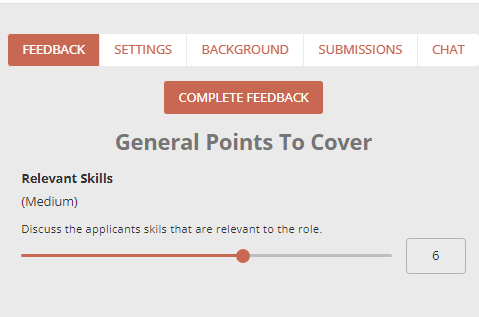
As an interviewer, you will see a any feedback scores which were marked as points to cover in on the right side of your screen. These are sliders which allow an interviewer to select how strongly agrees with certain statements. The scores range can be configured during the feedback form creation process, and they can be adjusted in real time during the meeting.
These scores cannot be seen by the applicant.
Submissions
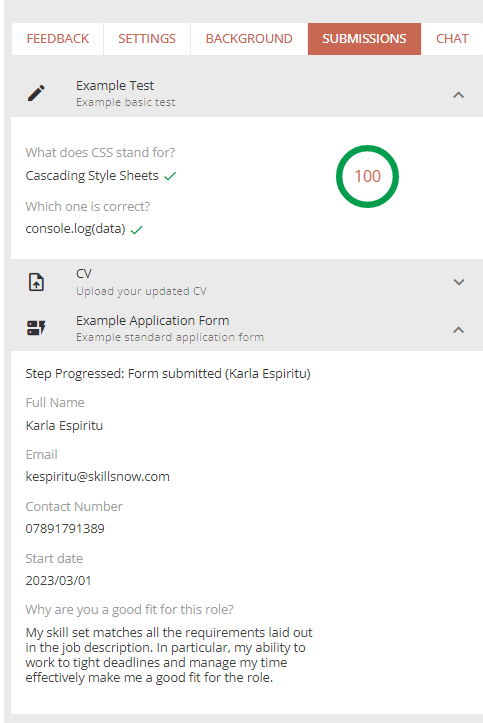
If you want to see any submissions the applicant has made so far in the process, click on the Submissions tab. This will give you sections where you can review the applicants assessment scores, file uploads and form submissions.
Chat
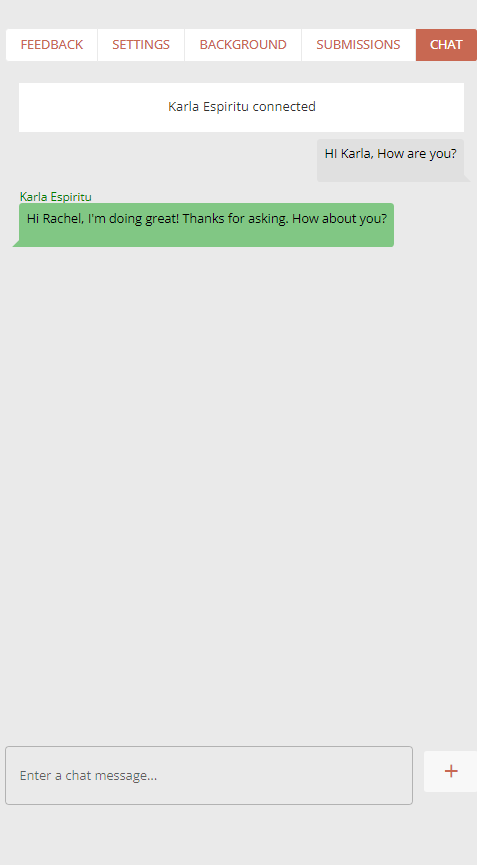
You can send and receive live chat from the all parties during an interview.
If the CHAT tab is not selected, you will be notified whenever a new message is received.

Completing Feedback
To complete feedback, click on the Complete Feedback button at the top of the Feedback tab.
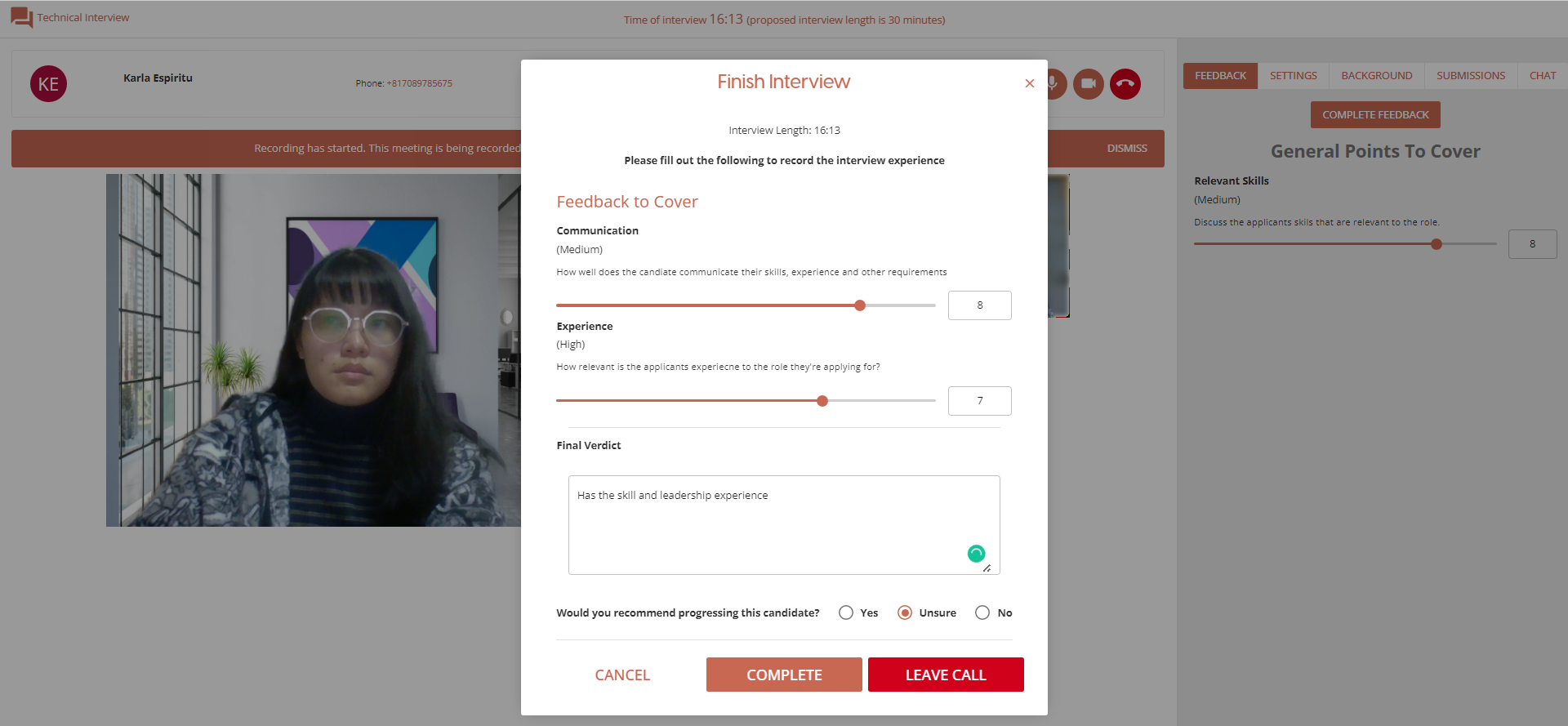
This will open a dialog which allows you to input your feedback scores onto a sliding scale. There is also a textbox for the you to leave any additional comments about the interview or the applicant.
Finally there is a recommendation option, which allows you to select between Yes, No and Maybe.
These feedback scores will them become visible to reviewers when they have provided their own feedback, and also recruiters.
Finishing Interview
After you have completed the feedback form, you can end the interview session by clicking the Complete button which will save and close the feedback form. If you have already stopped the recording and are the only participant left in the interview session, this will also end the interview and return you to your HireNow landing page.
If you have not stopped the recording, or there are still other parties in the interview, you can leave the interview by clicking on the End meeting button.

The ‘LEAVE CALL’ button will not save the feedback form and it will automatically end the interview, but the interviewer will have an opportunity to leave feedback for the candidate at a later date.
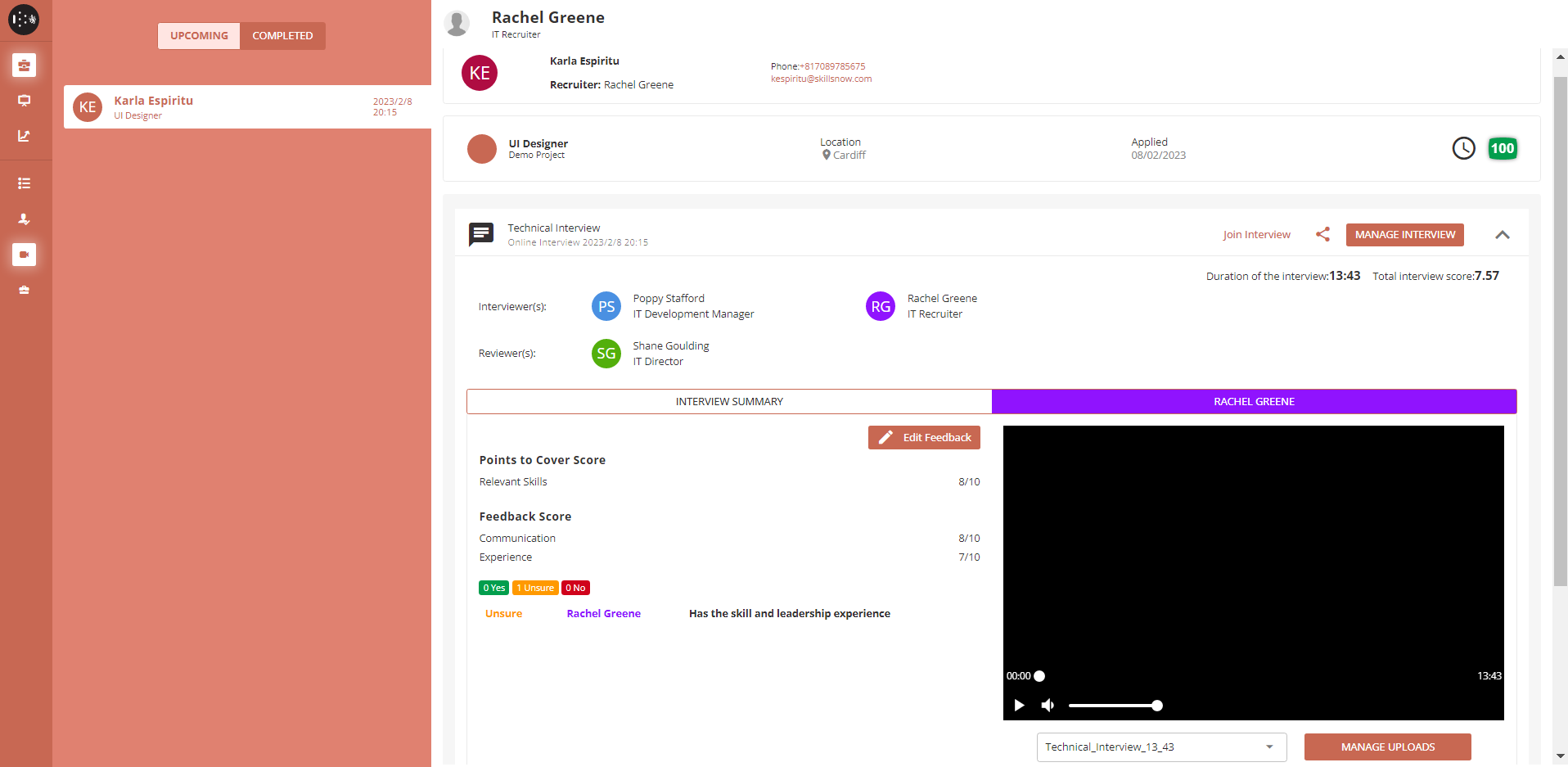
Interviewer(s) feedback can be viewed and edited on the Interviews page; initially a summary of all feedback will shown, but a specific interviewer can be also be selected. If you are an assigned interviewer on the interview session, then you will not be able to see other feedback scores until you have submitted your own.
Recording(s) can also be replayed from this screen; if there are multiple recordings, a drop down allows for selection.
The Manage Uploads button allows for any recordings to be downloaded, as well as allowing you to upload externally recorded interviews.
Known Issues
Zoom Interview. When leaving and re-joining the same Zoom interview, the user may see one or more black screens in the interview screen. This is due to the Zoom SDK having a hard-coded timeout of 2 minutes per session. The black screens will then clear themselves after a two-minute delay.