FAQ/Known Issues
General Issues
Below is a list of user asked questions and our advice on how to resolve/overcome the query raised.
1. Nothing shows on the screen when I load the page.
If your page appears empty, hard refresh your page to try and load it again.
- Chrome/Firefox/Internet Explorer/Edge - Ctrl + F5 (Windows), Hold down Cmd and Shift and then press R on your keyboard (Mac)
- Safari (Mac) - Go to Safari > Empty Cache, or hit Opt + Cmd + E OR click the refresh button on the address bar or press Cmd + R
2. Large video interview files are not downloading.
Large files can take up to 15mins to download. There is currently no indicator on the screen that the file is downloading. If you leave the browser window open, it will eventually finish downloading. If the download takes longer than 15minutes, please reach out to your dedicated support contact to retrieve the video file.
3. Mail goes to the Junk folder by mistake
There are times when you don't want messages from a specific sender or domain to end up in your Junk Email folder. Check if there are settings that result in those emails being sent straight to your Junk Email folder.
-
OUTLOOK
-
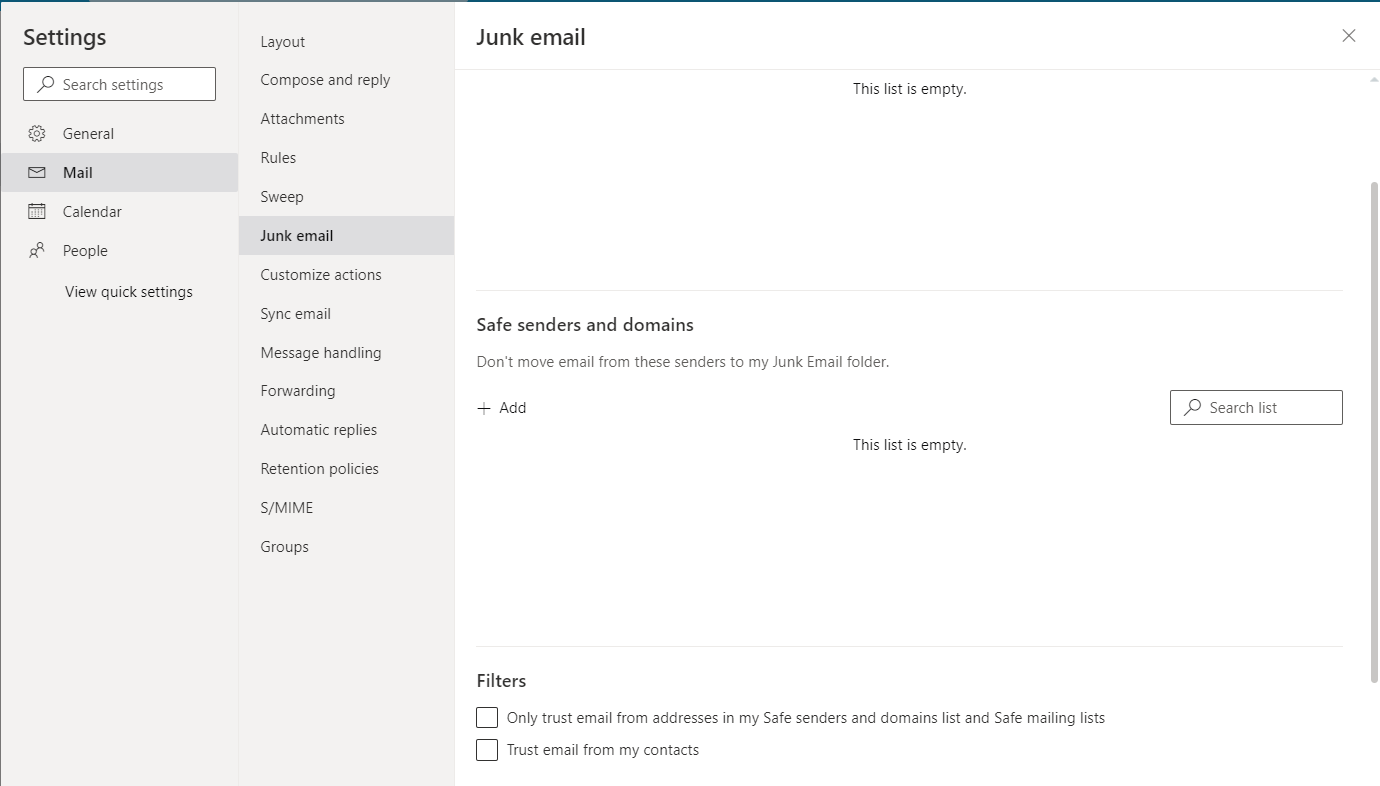
Check that the sender is not in your Blocked senders list. If they are, select the delete icon next to their name and add the sender to your Safe senders list instead.
-
Select Settings > View all Outlook settings.
-
Select Mail > Junk email.
-
-
- Check that you don't have an Inbox Rule running for the sender or a keyword in the deleted email.

Messages in your Junk folder are automatically deleted between 10 and 30 days after they arrive.
-
GMAIL
-
Log into your Gmail account and click the gear icon at the top right.
-
Click the See all settings button.

-
Go to the Filters and Blocked Addresses tab. Check if the email address was listed
-
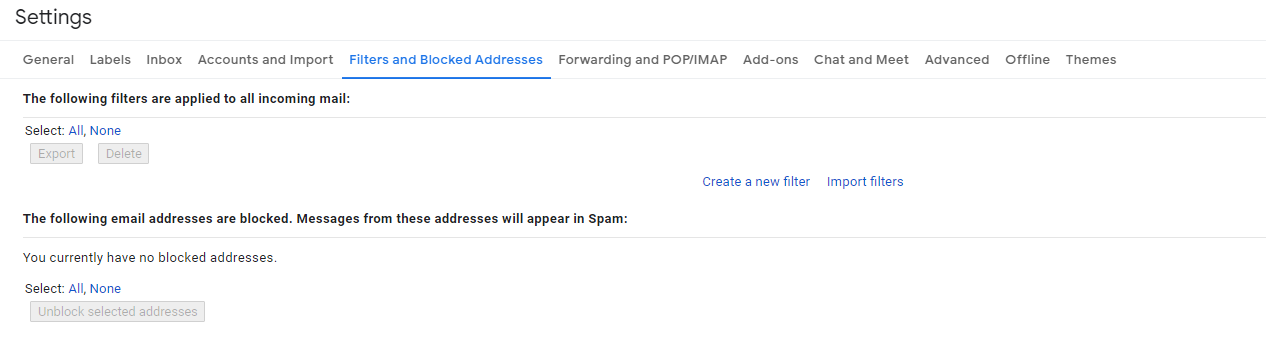
Spam more than 30 days will be automatically deleted
4. After I login or switch portal, I see "Request failed with status code 400"

This error can be see most often when logging in for the firs time during the day, but can rarely happen when switching between portals.
When landing on this page (may vary slightly per browser) delete everything after the ".com" in the URL bar, as shown in the image above, and then hit enter. You will be redirected to the original destination.
HireNow
Assessments
1. When I start my assessment, the window opens and then immediately closes, and I see a 'Assessment Submitted' message
When you click on Start Assessment, the timer will start and continue regardless of what you do next. Even if you close the window, refresh the browser or logout, the timer has started on the server and will continue to count down.
If you have previously opened the assessment, and try to access it again, the system will look at the state of the timer. If it has finished counting down, as soon as the assessment opens it will submit the assessment in its current state.
However, if this happens to you the first time you try to access the assessment, contact support : support@skillsnow.com
Interviews
1. My camera/microphone is not showing up in the interview lobby.
The first thing to check is to ensure that you have given yor browser permission to access your devices. This process can vary from browser to browser.
Chrome/FireFox/Edge
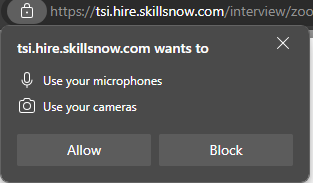
With these three browsers, it will ask permission to use your camera and microphone the first times you try to use it. You must accept these in order to let SkillsNow have access to your devices.
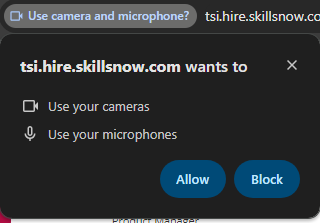
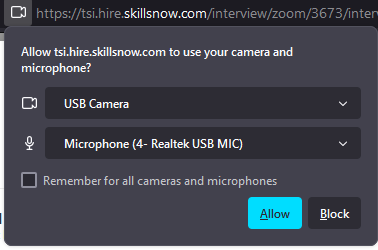
⚠️ Known Issue: When first giving permission to your devices in firefox, your devices options will still be empty. In this case, leave the Interview lobby by clicking Cancel then re-join to show your devices correctly.
⚠️ Known Issue: We utilise the Zoom Video SDK to provide our interview capabilities, and currently it is not compatible with the following systems:
- Opera GX Browser
- Google Chrome running on MacOS