Review Process Creation
DevelopNow Portal > Review Processess
Description
As a team leader, I want to be able to create a review process workflow so I can use it when sceduling a review to a team member.
Applicable User Roles
List of roles that have access or can use this feature.
Team Leader
CPD Admin
How To
In order to support 360 reviews, a comprehensive set of Review Processes can be created. E.g.: Line manager review process, Peer review process, Sub-ordinate review process etc.
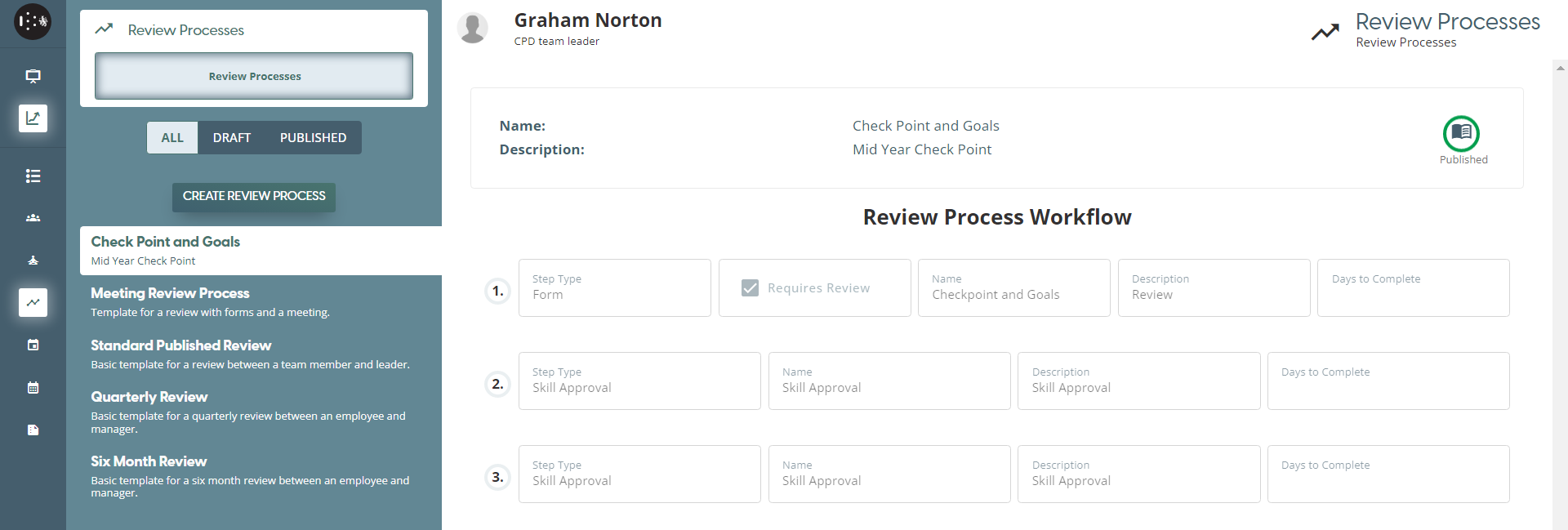
To Create a Review Process , navigate to Review Processes Page
From this page, you can see all the current Review Processes within the organisation. To switch between the different states, use the tabs in the Navigation panel to switch the view.
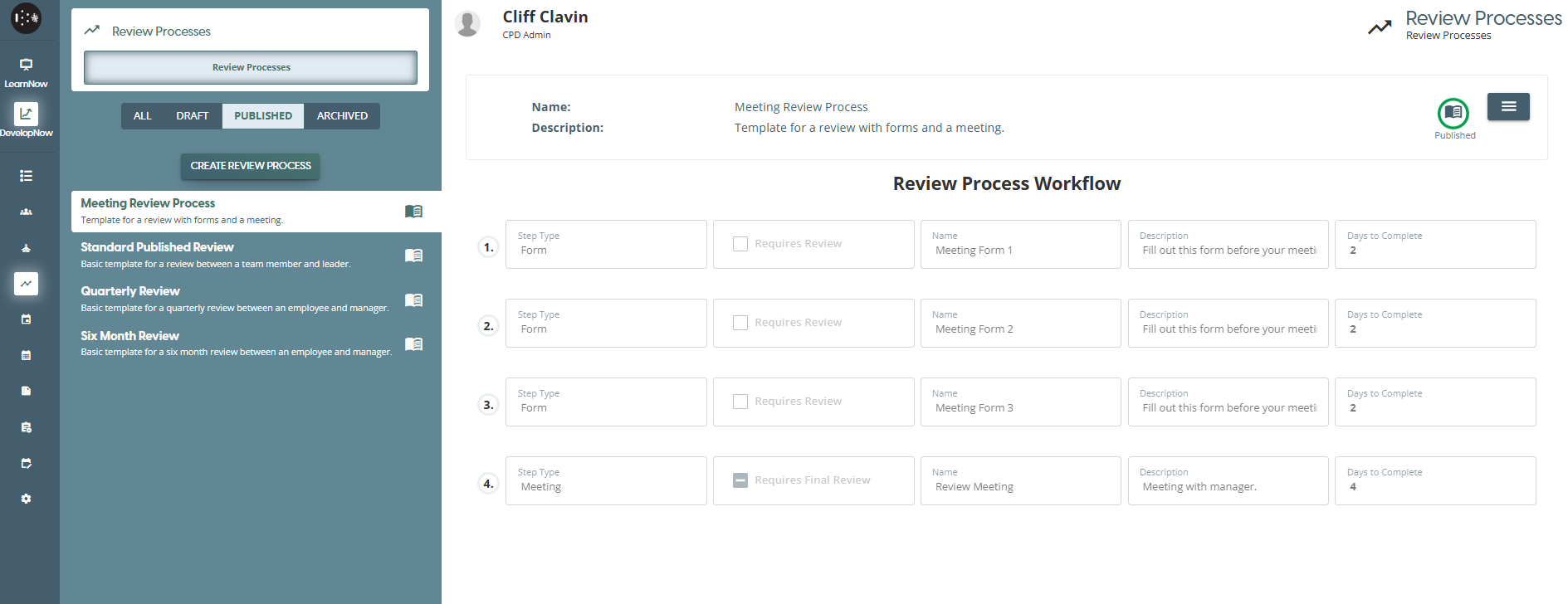
To create a new review process, click on the Create a New Review Process button to open the Create Review Process dialog.
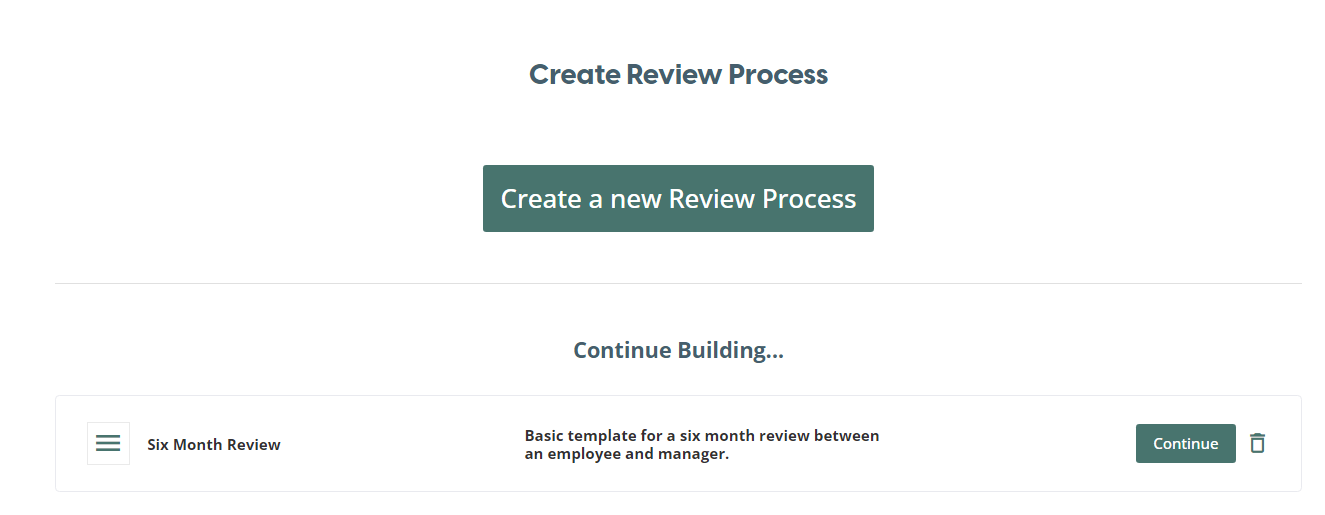
Once on this screen, you can start the Review Process creation process by clicking on 'Create a new Review Process' button or you can continue working on a Review Process in the draft state by clicking the 'Continue' button at any review process in the Continue Building.... list
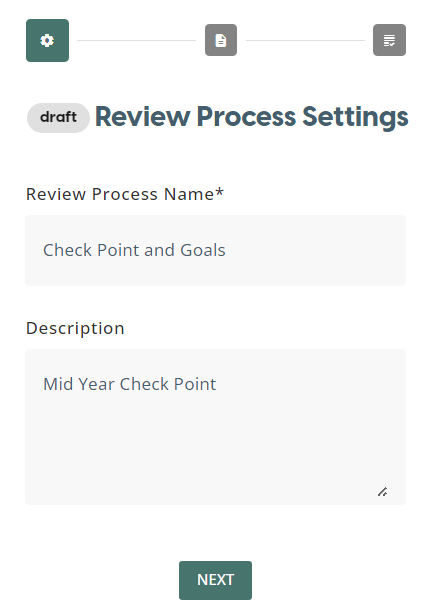
The first step to creating a Review Process is to give it a Name and Description. After clicking one of the buttons to build a review process, this is the first page you will land on. Once you have confirmed these details, click on the Next button to create the workflow for your Review Process.
Review Process Workflow
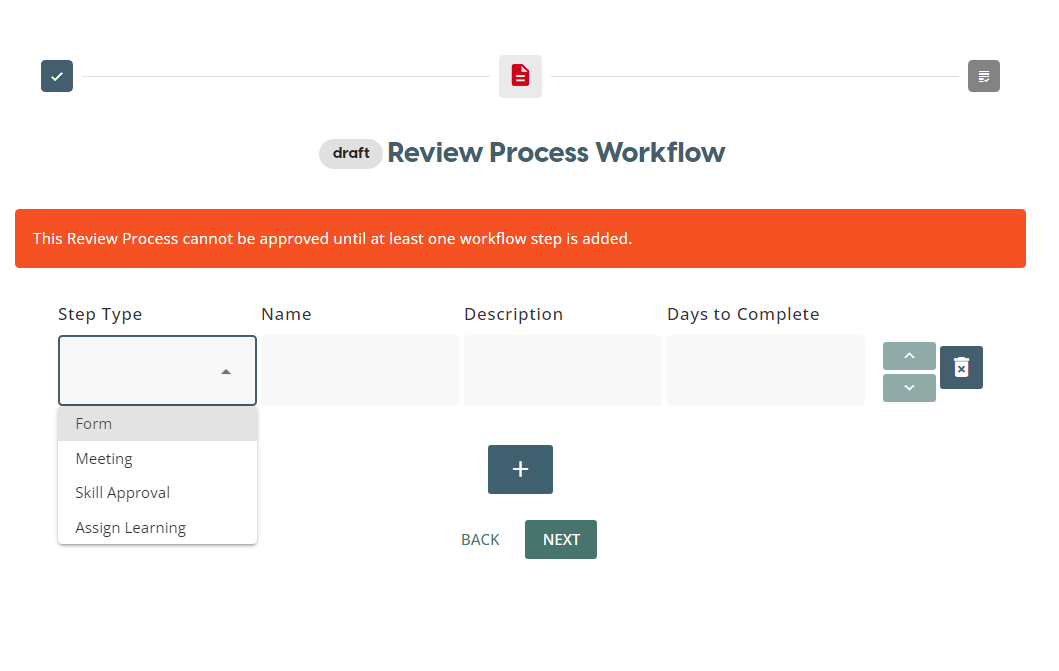
Review Process can be created from a set of Review Step Types which include: Forms, Meeting, Skill Approval, Learning Assignment.
There are four types of Review Process Steps as outlined below:
-
Form – These forms must be completed as part of the Review Process, and these forms can be used to set out the user’s future learning goals or to specify areas of future improvement. The dropdown will display a list of published Review Forms.
-
Meeting – This workflow step allows for a Team Leader to set a live review meeting between the reviewer and the team member.
-
Skills Approval – This workflow step will display all the pending Skill requests from the team member, and allows to Reviewer to accept or refuse these scores.
-
Assign Learning – Further learning, such as learning pathways and modules, can be assigned to the user as part of the Review.
These four types of review can be conducted individually or together as part of a comprehensive review.
Form
When user wants to use a Form as part of the Review Process, the user can select ‘Form’ on the drop-down list. In the drop-down list, only published forms that have been created in the CPD Form Builder will be available. To create a new form to be a part of a Review Process, they can use the CPD Form Builder to create their desired form, then add it to the Review Process. The Review Forms page can be viewed here
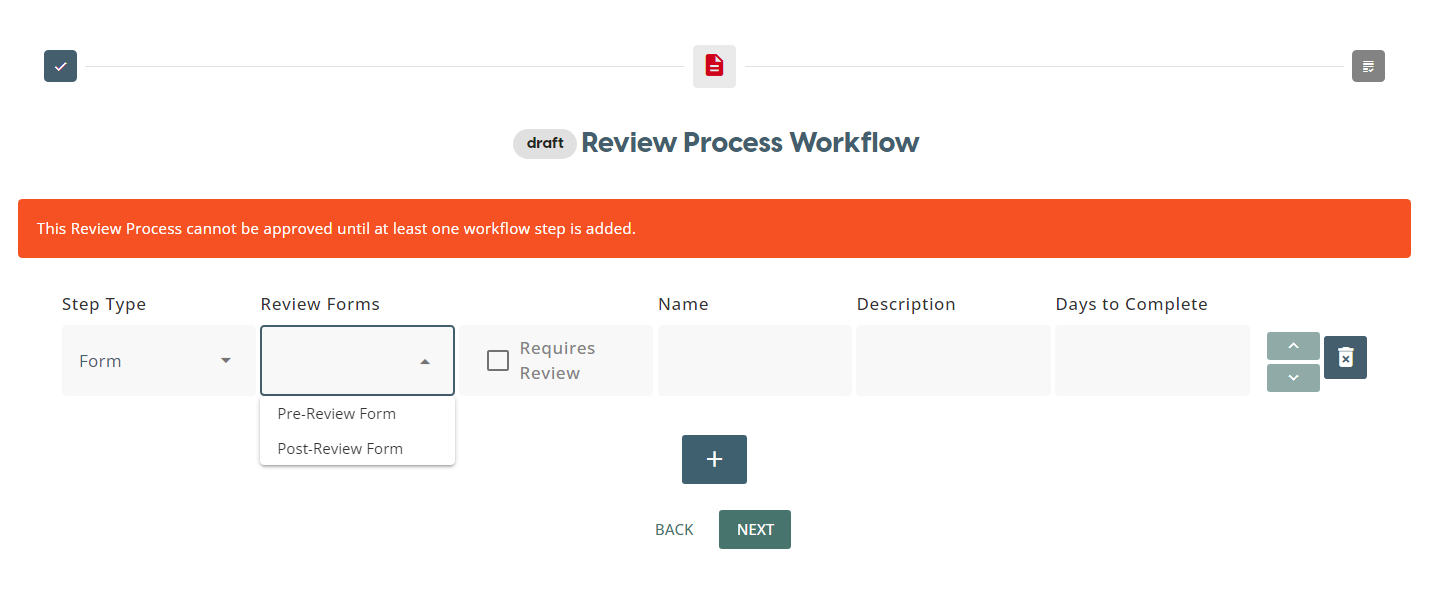
When “Requires Review” checkbox is ticked then the Review Process will not progress until the Reviewer approves the form submission.
Meeting
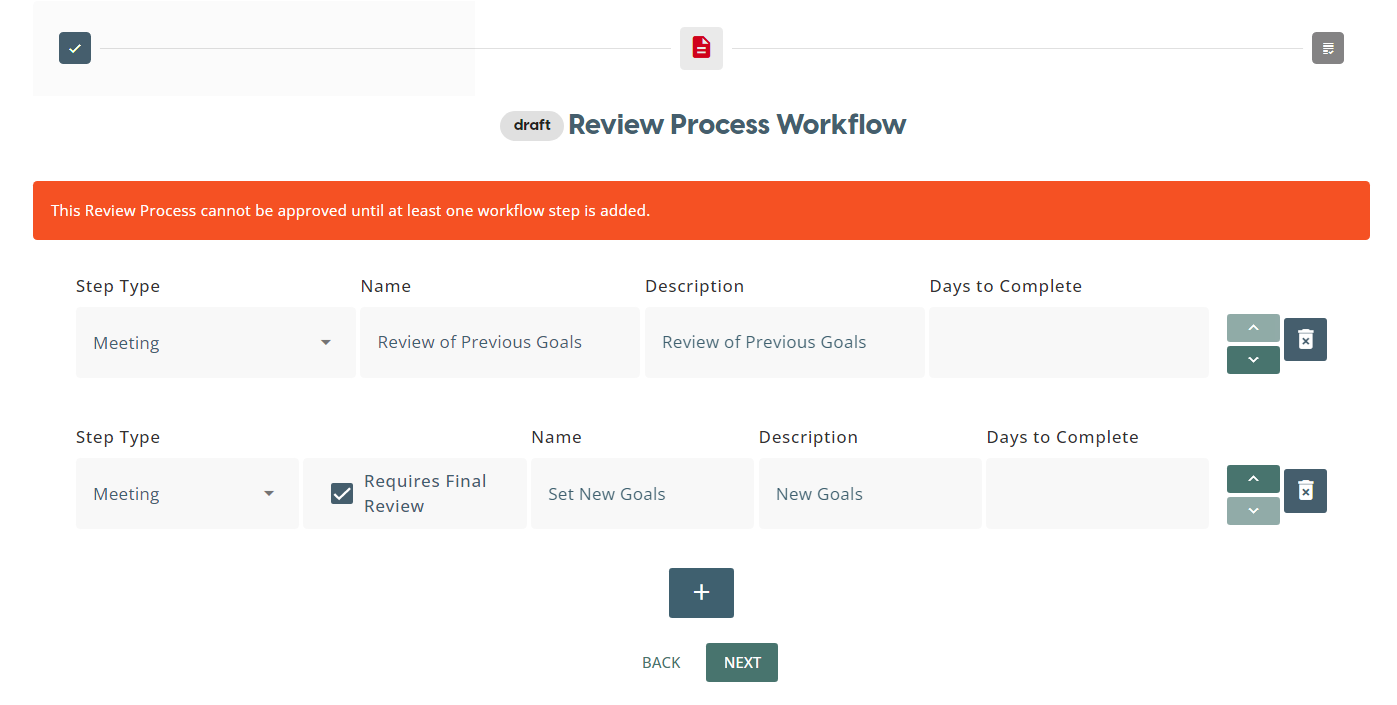
- When there are multiple meeting step types in a review process workflow, then only the last meeting in the workflow has the “Requires Final Review” checkbox
- When “Requires Final Review” checkbox is ticked then the Team Leader can see and set and final scores during review meeting.
Assign Learning
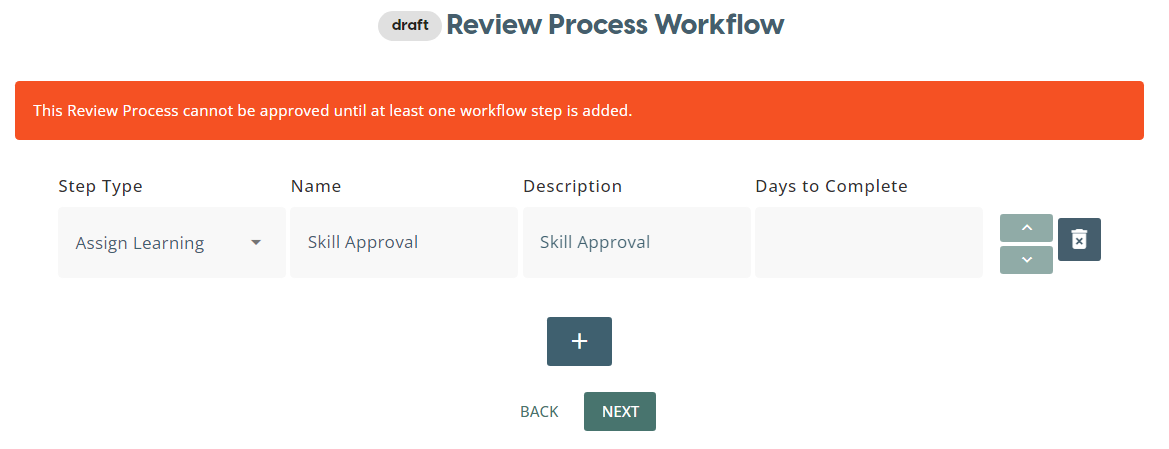
Skill Approval
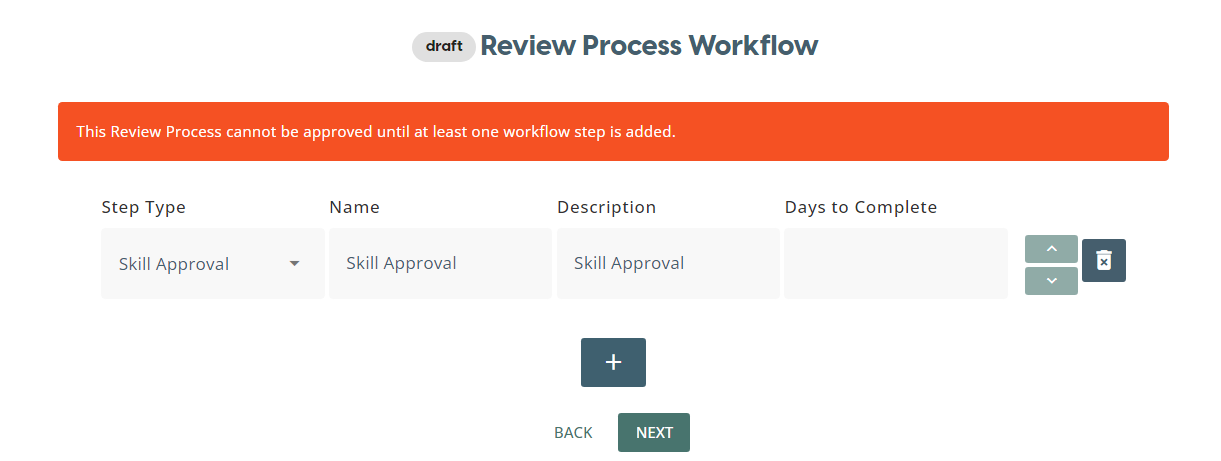
Once you have finished creating your workflow, click on the Next button to go onto the Approval step.
Confirm and publish
To publish the created Review Process , click Approve
Once a Review Process has been published, it cannot be edited.
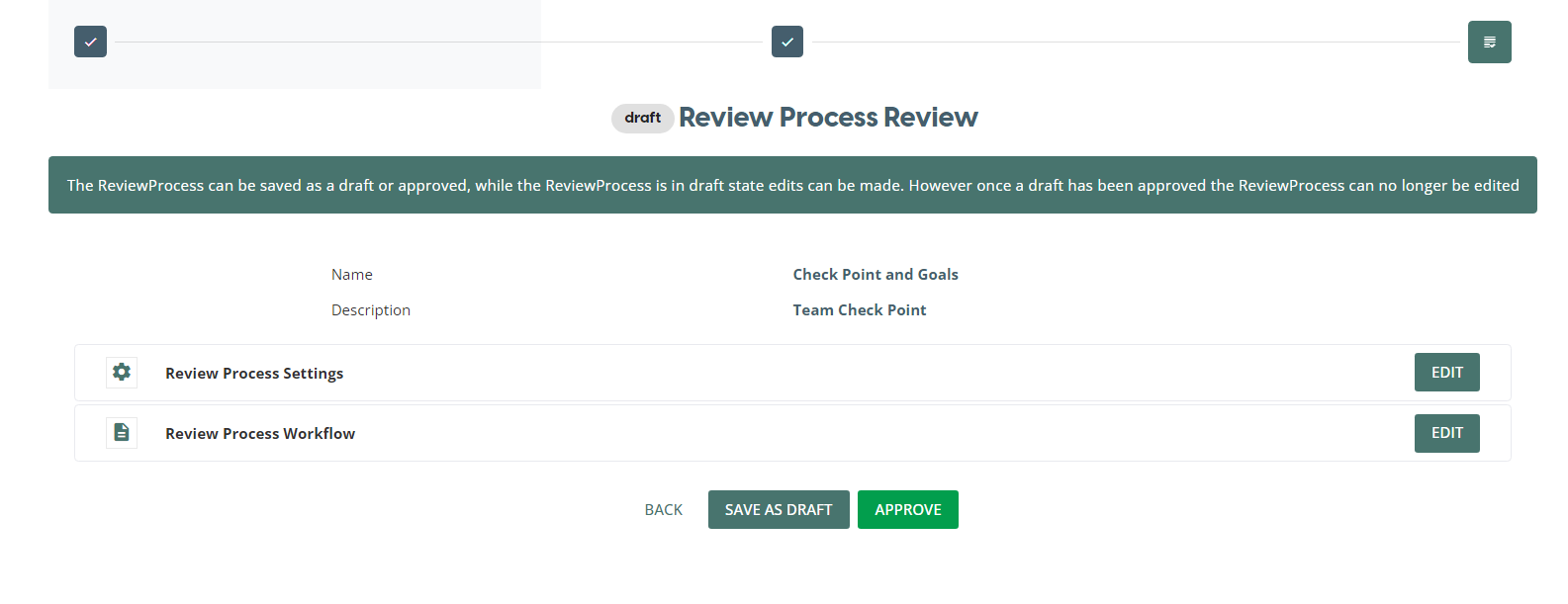
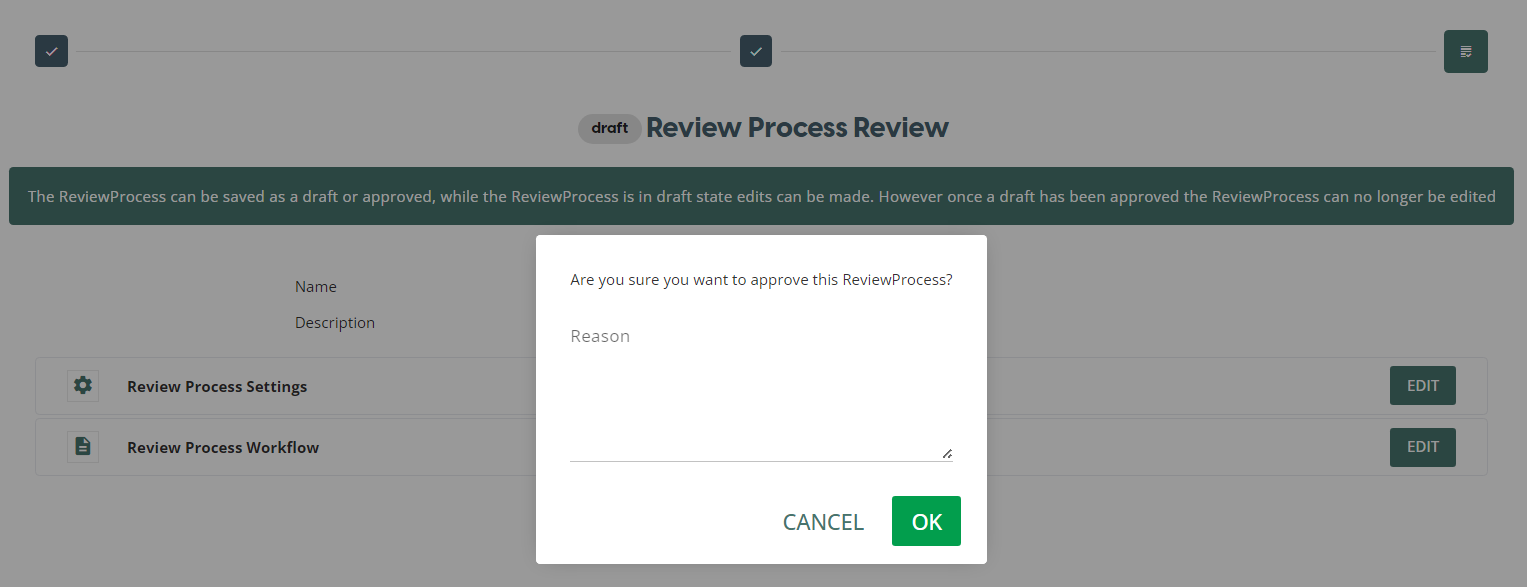
You have the ability to add a reason for publishing, but this is optional. Once you are ready to publish the review process, click OK
Created Review Process Workflow will be listed on the PUBLISHED tab and will be already for use for Team Review - Review Process. These Review Processes can now be selected to each team member when assigning a new review process.