Managing Learning Resources
Description
As a Knowledge Base Admin, I am able to edit a Learning Resource to ensure the learning content is formatted correctly to provide the best experience for Knowledge seekers
Applicable User Roles
List of roles that have access or can use this feature.
Knowledge Base Admin
Creating a Learning Resource
Insert User Guide once Assessments have been created. New dialog and functionality will be introduced
Editing a Learning Resource
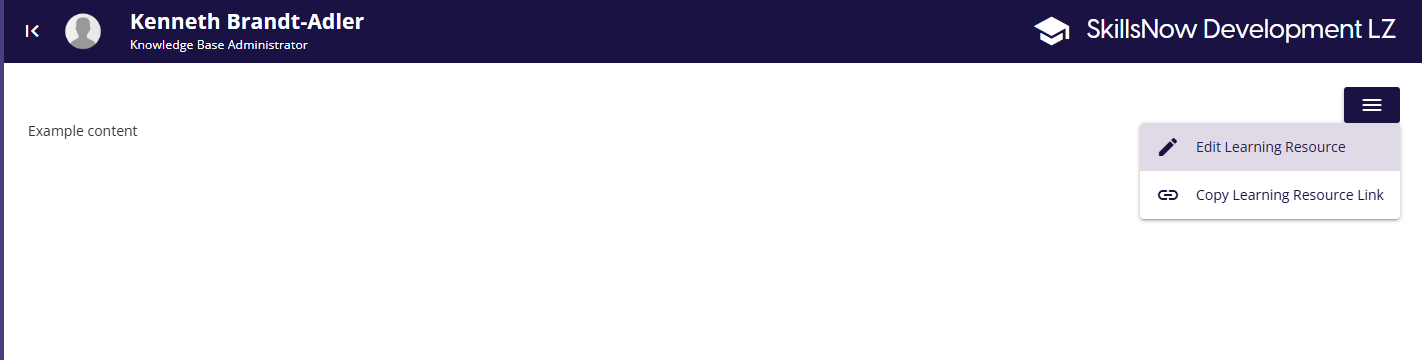
To edit an already existing Learning Resource, click on the Page Options burger menu in the top right of any page to open the menu. From there, click on the Edit Learning Resource option.
If you click on the Create New Learning Resource button, after entering the details you will automatically in the edit mode for the new Learning Resource.
While editing a Learning Resource, the platform will create an auto-save record every minute, which means that your work will be protected in the case of an accident such as a sudden loss of power.
The platform will treat any Learning Resource as currently being edited if there has been an auto-save record created within the last 10 minutes. Unless you are the author of the auto-save, you will not be able to edit that particular Learning Resource.
If you are the author, or if over 10 minutes has passed, you will be presented with a dialog with options on how to proceed -
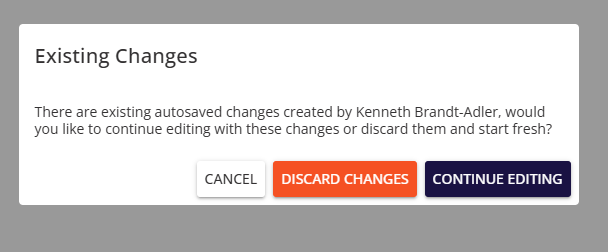
- Cancel: Close the dialog and make no changes. The autosave record is unaffected.
- Discard Changes: Discard all changes from the autosave and start editing from the last known published or saved state.
- Continue Editing: Start editing the Learning Resource it the state it was in when the latest auto-save was created.
You will also see the same prompt if you try to edit a Learning Resource with a Draft version saved, allowing you to continue from the state the Learning Resource was in when the draft was saved.
Publishing a Learning Resource
Once you are satisfied with your changes, you can publish the Learning Resource to update what the Knowledge Seekers can see. You can do this via the burger menu options on the top right of a Learning Resource you are editing.
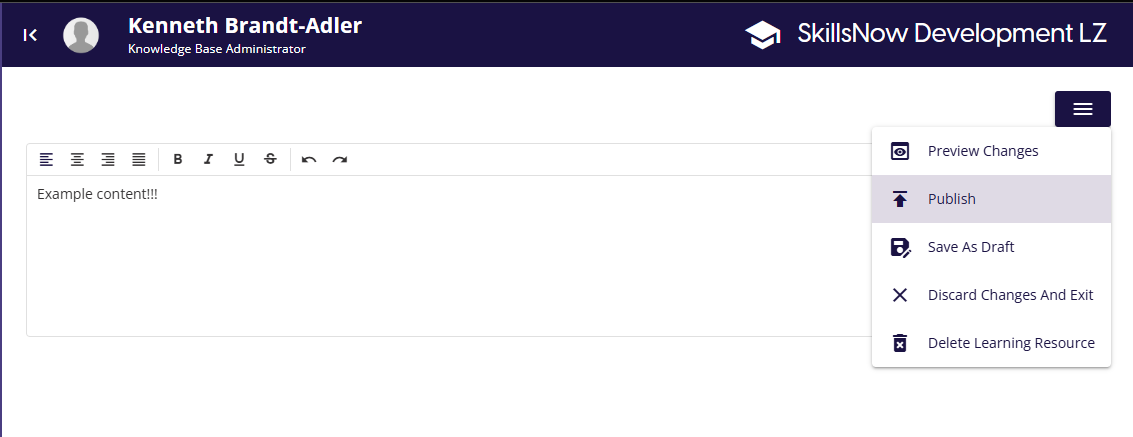
On click, you will be presented a Publish Learning Resource dialog which requires you to select two from two different publishing options.
Version Control
- Create New Version: This will create a new version of the Learning Resource, which will automatically archive the previous version.
- Update Current Version: Only the current version of the Learning Resource will be updated.
Learning Resource State
- Live: Visible to anyone
- Restricted: Can only be accessed by Admins
Once you have selected an option for both sections, clicking on publish will update and publish the Learning Resource.
Publishing a Learning Resource will delete all current draft and autosave records for that learning resource.
Draft Versions
If you wish to stop editing for a while and come back to finish the editing later, you can save the current progress as a draft. This can be done from the burger menu in the top right of the page When you come back to the Learning Resource and click on Edit Learning Resource, you will be able to pick up where you left off from.
If you are not the author of the draft, you will be given the option to either continue from the draft state, or discard the draft and start editing from the last known published state.
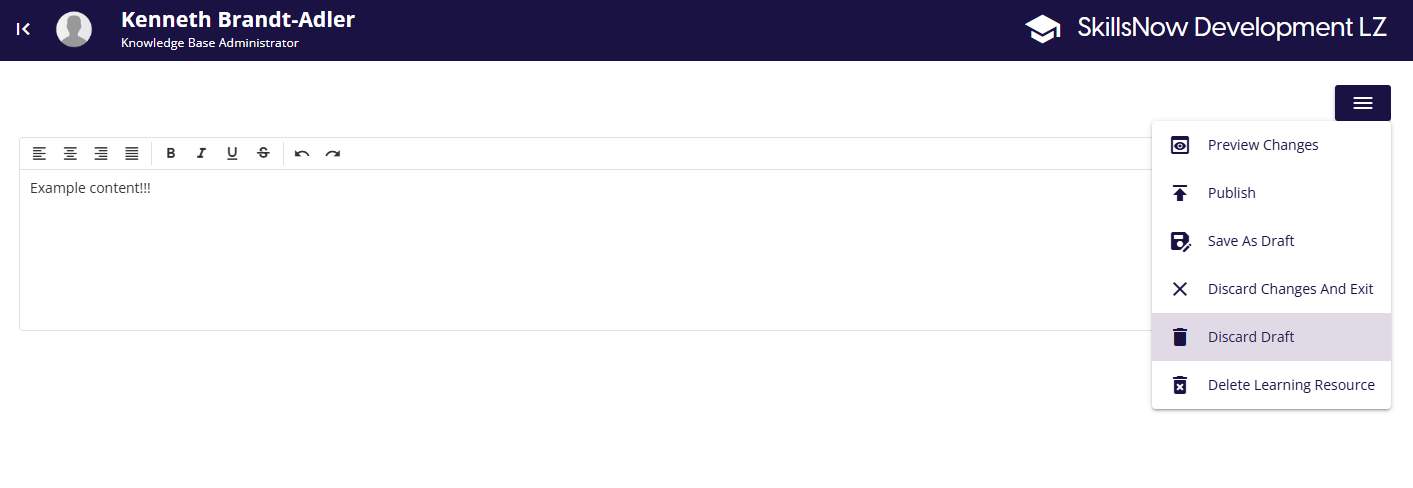
If you have made changes on a draft version of a Learning Resource, and wish to go back to the last known published state and work from there, you can select the Discard Draft option from the burger menu while the Learning Resource is in edit mode.
Delete Learning Resource
To delete a Learning Resource, you must be in the edit mode for the Learning Resource. There is a Delete Learning Resource option in the burger menu in the top right of the page, which will ask you to confirm you wish to delete the Learning Resource.
Deleting a Learning Resource will also delete all previous versions, drafts and auto-save records and they cannot be recovered. Be careful to not delete any material you may wish to access at a later date.
Archive Learning Resource
If you wish to archive a Learning Resource, this can be found in the Page Options burger menu when viewing a Learning Resource.